
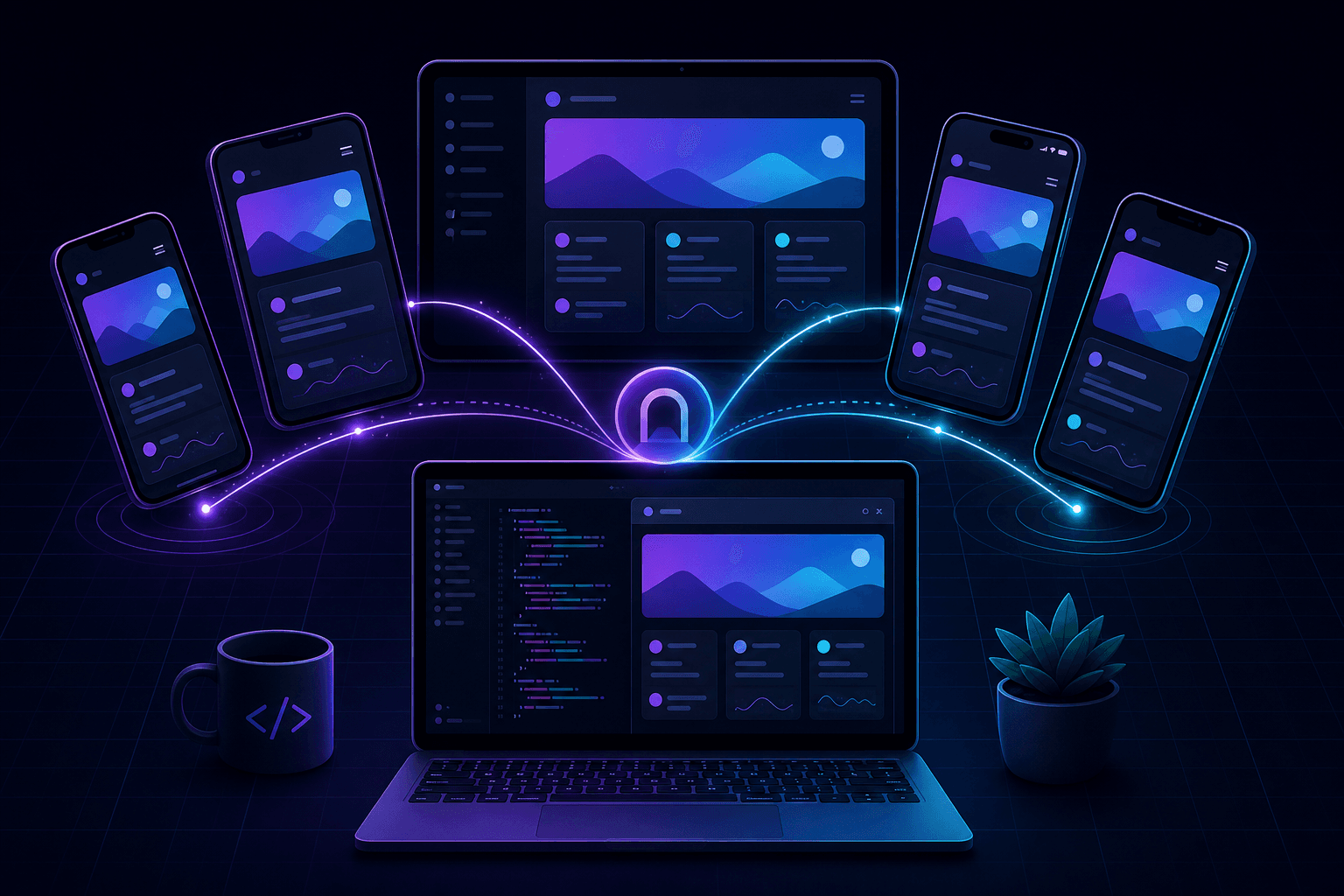
You can test your app on mobile devices while it runs on localhost by exposing it through a public HTTPS URL. Phones and tablets cannot reach 127.0.0.1 on your laptop, but a localhost tunnel bridges that gap instantly.
Why mobile devices cannot access localhost
When you run a dev server on your laptop, it listens on a loopback address (127.0.0.1 or localhost) that only your machine can reach. Even if your phone is on the same Wi-Fi network, typing http://192.168.x.x:3000 often fails due to firewall rules, HTTPS requirements, or CORS policies.
A localhost tunnel gives your phone a standard HTTPS URL that forwards to your local process—no network configuration required.
What mobile testing catches that emulators miss
- Real touch targets, scroll behavior, and gesture handling.
- Actual viewport sizes across iOS and Android devices.
- Mobile browser quirks (Safari, Chrome, in-app WebViews).
- Performance on real hardware, not simulated environments.
- Camera, geolocation, and device-specific API behavior.
- OAuth and deep-link redirects on mobile browsers.
Step-by-step: mobile testing with PortPreview
- Start your dev server locally (for example
npm run devon port 3000). - Run
npx portpreview 3000to get a public HTTPS URL. - Open the URL on your phone's browser (or scan a QR code if your team shares links that way).
- Test responsive layouts, navigation, forms, and auth flows on the real device.
- Share the same URL with QA or design teammates for cross-device review.
Mobile testing checklist
Responsive layout
Verify breakpoints, font scaling, image loading, and overflow behavior on phones and tablets.
Touch interactions
Test tap targets, swipe gestures, pull-to-refresh, and sticky headers under real touch input.
Authentication flows
OAuth redirects and magic-link logins behave differently on mobile browsers. Test the full auth cycle on device. See OAuth callback testing for setup details.
Performance
Measure page load, JavaScript bundle impact, and image optimization on mid-range devices—not just your development laptop.
Tips for reliable mobile localhost testing
- Use HTTPS: many mobile features (service workers, secure cookies, geolocation) require HTTPS, which tunnels provide by default.
- Disable cache during testing: hard-refresh or use incognito mode to avoid stale assets.
- Test multiple devices: iOS Safari and Android Chrome handle CSS and JavaScript differently.
- Keep the tunnel active: the URL stops working when you close the CLI session.
Share mobile previews with your team
Instead of recording screen captures, share the tunnel URL so teammates test on their own devices. Read how to share your local dev server for collaboration workflows.
Start PortPreview free for fast mobile testing from localhost.