
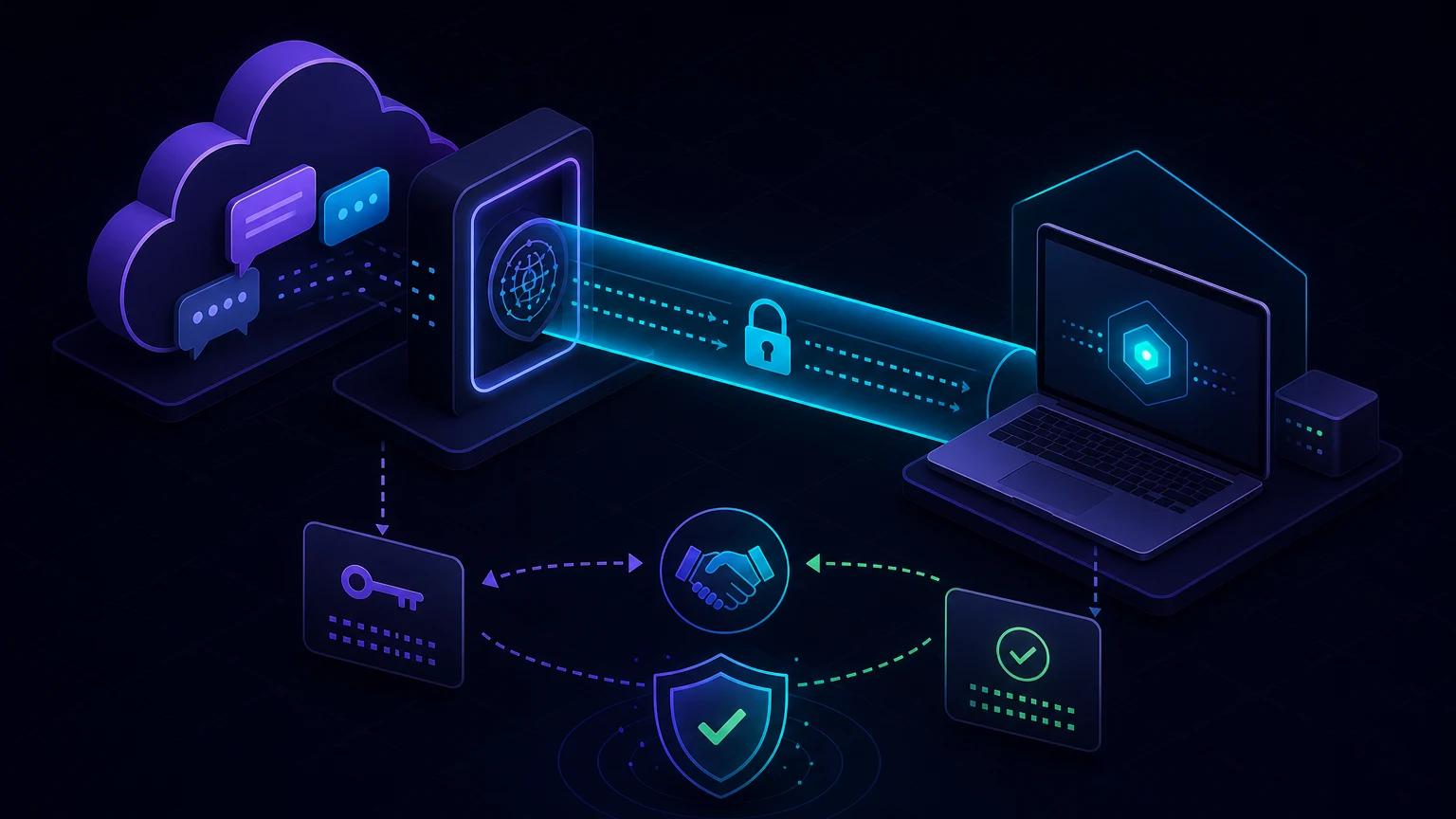
To test a WhatsApp Cloud API webhook on localhost, expose your local endpoint through HTTPS, implement Meta's GET verification challenge, then verify each POST request's X-Hub-Signature-256 against the raw body. Register the tunnel URL in your Meta app, subscribe the WhatsApp Business Account to messages, and send a test message to receive a real payload without deploying.
WhatsApp webhooks use two different verification flows
The most important distinction is that webhook setup and webhook delivery are authenticated differently. During setup, Meta sends a GET request containing hub.mode, hub.verify_token, and hub.challenge. Your endpoint compares the verify token and returns the challenge as plain text. Later, event deliveries are POST requests; those should be authenticated by validating the HMAC signature created with your Meta App Secret.
A verify token is a random string you choose; it is not the WhatsApp access token and not the App Secret. Returning the challenge proves control of the callback endpoint. It does not authenticate future POST requests. Meta's official WhatsApp webhook guide covers callback configuration, subscriptions, and webhook fields.
Create a Next.js App Router endpoint
The route below handles both phases. Reading POST data with request.text() preserves the exact bytes needed for signature verification.
// app/api/webhooks/whatsapp/route.ts
import crypto from 'node:crypto';
import { NextRequest } from 'next/server';

export const runtime = 'nodejs';

export async function GET(request: NextRequest) {
  const mode = request.nextUrl.searchParams.get('hub.mode');
  const token = request.nextUrl.searchParams.get('hub.verify_token');
  const challenge = request.nextUrl.searchParams.get('hub.challenge');

  if (mode === 'subscribe' && token === process.env.META_VERIFY_TOKEN) {
    return new Response(challenge ?? '', { status: 200 });
  }
  return new Response('Forbidden', { status: 403 });
}

export async function POST(request: Request) {
  const rawBody = await request.text();
  const supplied = request.headers.get('x-hub-signature-256') ?? '';
  const expected = 'sha256=' + crypto
    .createHmac('sha256', process.env.META_APP_SECRET!)
    .update(rawBody)
    .digest('hex');

  const a = Buffer.from(supplied);
  const b = Buffer.from(expected);
  if (a.length !== b.length || !crypto.timingSafeEqual(a, b)) {
    return new Response('Invalid signature', { status: 401 });
  }

  const payload = JSON.parse(rawBody);
  await enqueueWhatsAppPayload(payload);
  return new Response('EVENT_RECEIVED', { status: 200 });
}
Do not call request.json() and then reconstruct the JSON for HMAC. Whitespace, escaping, or key ordering can change, producing a different digest. If you use Express, capture a Buffer before a global JSON parser. The general webhook signature guide explains raw-body handling across frameworks.
Start a tunnel and configure the callback
- Run the Next.js app locally, normally with
npm run devon port 3000. - Run
npx portpreview 3000in a separate terminal. - Set
META_VERIFY_TOKENto a random value andMETA_APP_SECRETto the App Secret from Meta's app settings. - In the Meta developer dashboard, open the WhatsApp product's Configuration page.
- Set the callback URL to
https://YOUR-TUNNEL.portpreview.dev/api/webhooks/whatsappand enter the same verify token. - After verification succeeds, subscribe to the
messagesfield for the WhatsApp Business Account.
The tunnel must remain active during both the GET challenge and subsequent POST deliveries. A URL copied from an older session may resolve but no longer forward to your machine, so confirm the exact callback whenever the local tunnel changes.
Test the GET challenge independently
Before using the dashboard, reproduce the request locally:
curl -i \
  "http://localhost:3000/api/webhooks/whatsapp?hub.mode=subscribe&hub.verify_token=${META_VERIFY_TOKEN}&hub.challenge=123456"
A correct response is status 200 with body 123456, not JSON and not "123456" with quotes. If the token is wrong, 403 is appropriate. Do not log query parameters because the verify token appears there.
Understand a messages payload before writing business logic
WhatsApp wraps data several levels deep. A typical notification has object: "whatsapp_business_account", an entry array, a changes array, and a change whose field is messages. Inside value, incoming user content appears in messages; delivery, read, and failure updates for messages you sent appear in statuses.
for (const entry of payload.entry ?? []) {
  for (const change of entry.changes ?? []) {
    if (change.field !== 'messages') continue;
    for (const message of change.value.messages ?? []) {
      await handleInboundMessage({
        id: message.id,
        from: message.from,
        type: message.type,
        text: message.text?.body,
      });
    }
    for (const status of change.value.statuses ?? []) {
      await updateDeliveryStatus(status.id, status.status);
    }
  }
}
Do not assume every notification contains a text message. Images, audio, documents, locations, interactive replies, system messages, and status-only payloads have different shapes. Keep a dispatcher keyed by message.type, validate optional fields, and retain unknown event types for review rather than crashing.
Verify the POST signature correctly
The X-Hub-Signature-256 value uses the form sha256=<hex digest>. Compute HMAC-SHA256 over the raw request bytes using the Meta App Secret. The permanent or temporary WhatsApp access token is used for Graph API calls; it is not the HMAC key. Use constant-time comparison and reject a missing signature.
Keep local verification enabled. Anyone who learns a tunnel URL can POST arbitrary JSON to it. Without verification, a forged event might trigger automatic replies, mutate CRM records, or expose customer state. Rotate the App Secret if it is committed, printed, or shared accidentally.
Acknowledge quickly and deduplicate messages
Return 200 after authenticating and durably queuing the event. Do not wait while downloading media, calling an LLM, or updating several services. Providers retry deliveries when acknowledgements fail, and network ambiguity means duplicates are normal.
Use the WhatsApp message id as the idempotency key for inbound messages and status objects. Put a unique constraint around processed IDs. Status transitions can legitimately progress from sent to delivered to read, so deduplicate each relevant transition without discarding a later state.
Troubleshoot WhatsApp webhook setup
The callback URL could not be validated
Test the GET route through the public URL. Ensure it accepts GET, compares the exact verify token, and responds with only the challenge. Redirects, auth middleware, locale rewrites, or a JSON wrapper can break verification. Confirm the environment variable is loaded by the running dev process.
Verification succeeds but no messages arrive
Callback verification alone does not subscribe the WhatsApp Business Account to fields. Confirm the messages subscription in the dashboard and that the phone number belongs to the expected app and account. Send a message from an allowed recipient if the app is still in development mode.
Every POST fails signature validation
The usual causes are using the access token instead of App Secret, hashing parsed JSON, omitting the sha256= prefix, or comparing different encodings. Log body length and whether the header exists, but never print the secret or full customer payload.
Text messages work but media handling fails
Media notifications contain an ID, not necessarily the file bytes. Fetch media through the Graph API with a valid access token, then download it. Keep that slower workflow outside the webhook acknowledgement path.
The local endpoint sees duplicate events
Inspect response status and latency, add durable idempotency, and replay one captured event after each fix. The webhook replay guide shows how to avoid sending a new real message for every code change.
Protect customer data during local tests
- Use test phone numbers and synthetic conversations where possible.
- Redact phone numbers, message bodies, media URLs, contacts, and profile names from logs.
- Store App Secret, access tokens, and verify token only in ignored environment files or a secret manager.
- Restrict who can view tunnel captures and delete them after the debugging session.
- Validate object, field, and account identifiers before executing business actions.
A tunnel makes iteration fast, but it also brings production-shaped personal data to a developer machine. Apply the controls in the tunnel security checklist before testing with real users.