
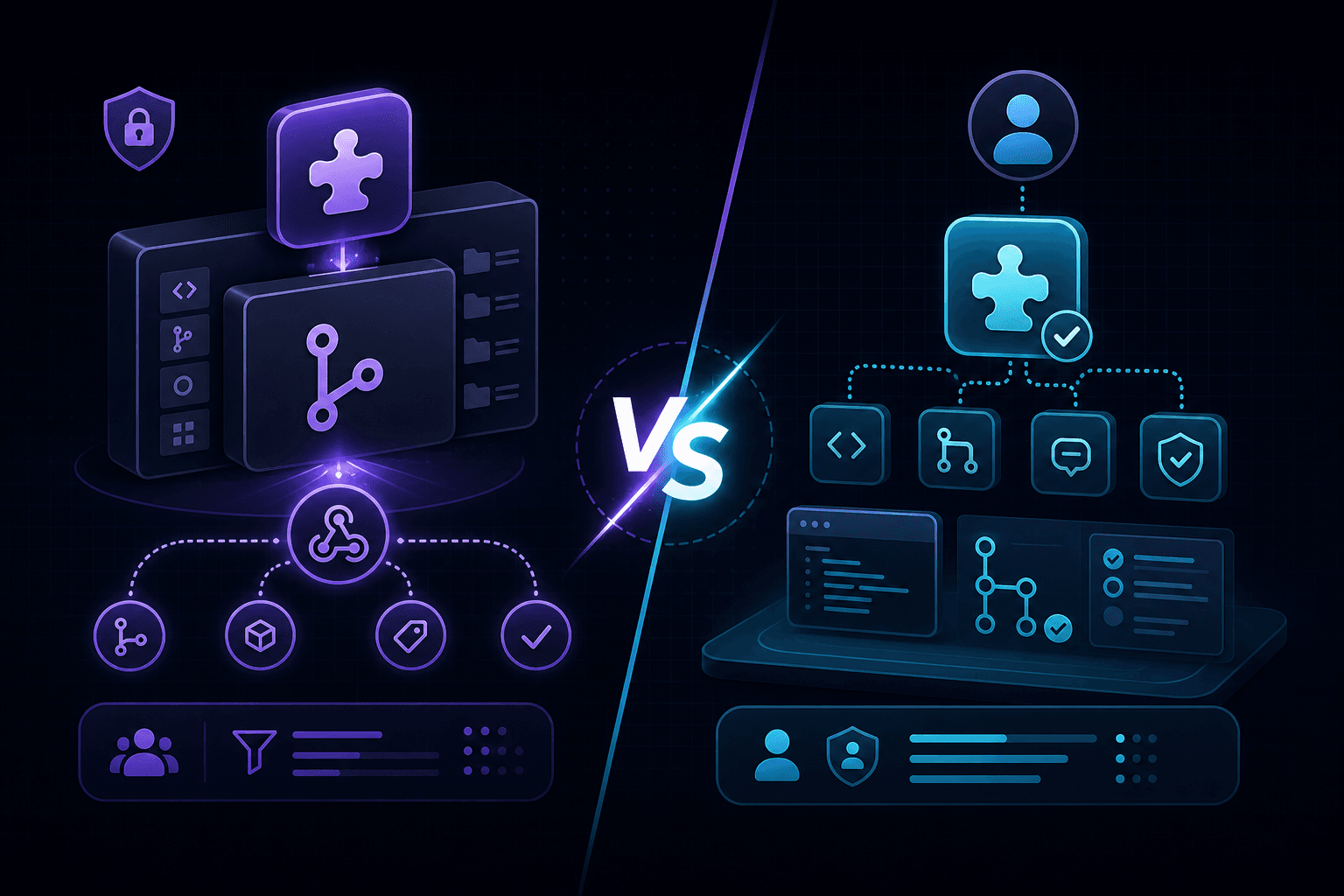
The first time you build a GitHub integration, you'll spend an hour trying to figure out whether you want a GitHub App or an OAuth App. The docs treat them as equivalent options. They're not. The webhook story alone is enough to make the choice for you most of the time.
The very short summary
- GitHub App: installed on accounts or repositories, has fine-grained permissions, receives webhooks for the resources it's installed on, authenticates as itself with short-lived tokens.
- OAuth App: users authorize it, it acts on their behalf with their permissions, receives webhooks only if it sets them up like any third-party tool, authenticates as the user with long-lived tokens.
If you're building anything that operates without an active user — a CI bot, a code review automation, anything that runs on schedule — you want a GitHub App. If you're building a tool that does actions on behalf of a logged-in user (like a code search UI), an OAuth App is the right shape.
How they receive webhooks
GitHub Apps
You configure one webhook URL when you create the app. When a user installs the app on an account or repository, GitHub starts sending events for that scope to your URL. Events include installation (the install/uninstall lifecycle), installation_repositories (added or removed repos), and whatever event types your app subscribed to (push, pull_request, etc.).
Each event includes an X-GitHub-Hook-Installation-Target-Type header ("integration") and an installation ID you can use to mint a token for that specific install. The signature is HMAC SHA-256 in X-Hub-Signature-256 — same shape as repository webhooks.
OAuth Apps
OAuth Apps don't have a built-in webhook subscription. To receive webhooks, the app's authorized users have to create repository or organization webhooks pointing at the app's URL. This means the app's webhook reach is tied to where its users have set up subscriptions, not to where the app itself is "installed".
Some teams build OAuth Apps that automatically create webhooks via the GitHub API after authorization. That works, but you're now managing per-user webhook lifecycle alongside the app's own logic.
Authentication is the real divergence
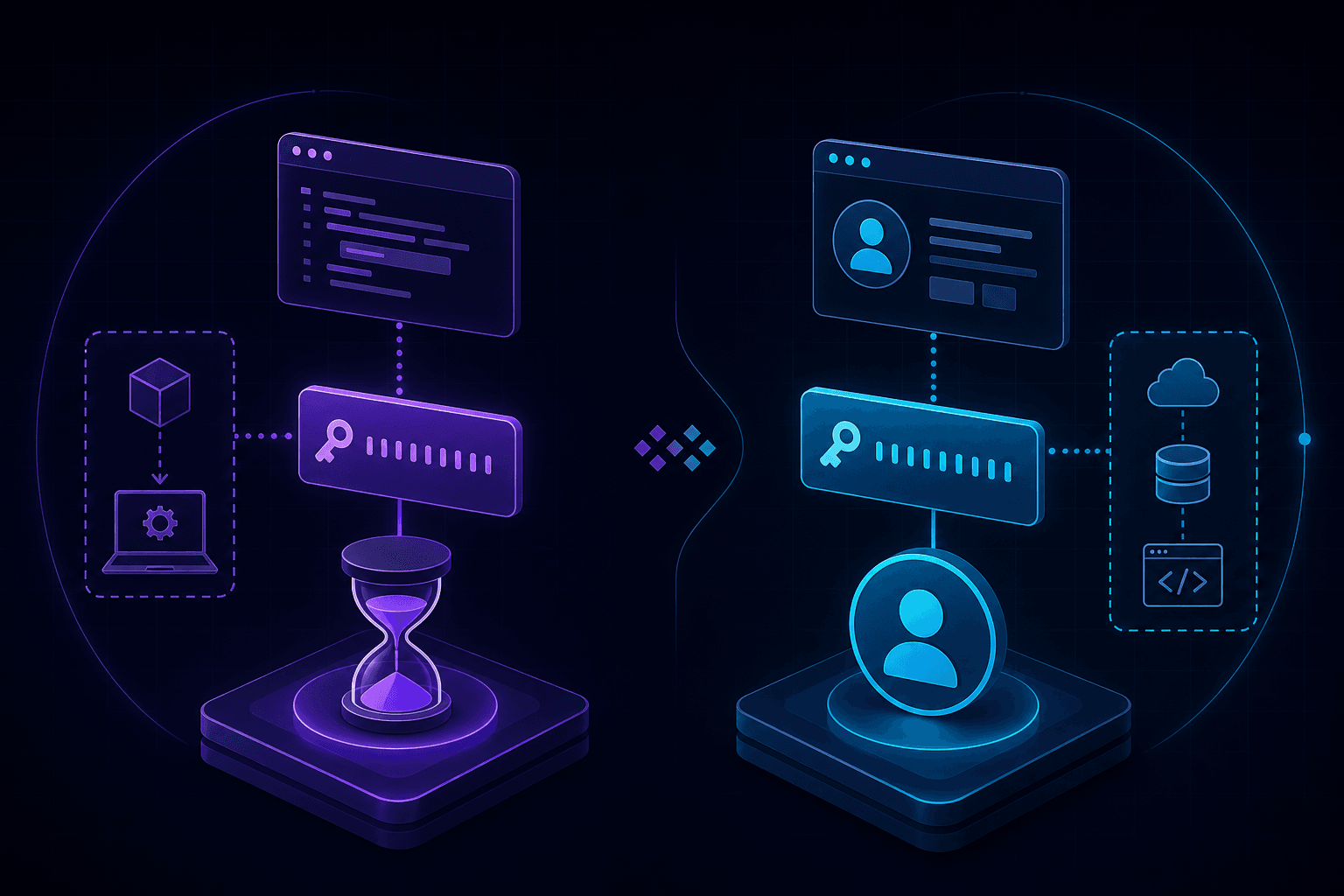
GitHub Apps authenticate using JWT-signed requests to mint short-lived installation tokens (1 hour) for each install. The JWT is signed with a private key you generate when you create the app. Your code:
// 1. Sign a JWT with your app's private key (10-min expiry)
const jwt = createAppJwt(APP_ID, PRIVATE_KEY);

// 2. Exchange JWT for an installation token (good for 1 hour)
const token = await fetchInstallationToken(jwt, INSTALLATION_ID);

// 3. Make API calls with that token
const res = await fetch('https://api.github.com/repos/x/y/issues', {
  headers: { Authorization: `token ${token}` },
});
Installation tokens are scoped to the install and expire automatically — so a leak has limited blast radius.
OAuth Apps authenticate with user access tokens obtained via the standard OAuth flow. Those tokens are long-lived by default and act as the user — leaking one means an attacker can do anything that user could do. The GitHub docs nudge you toward GitHub Apps for new integrations partly for this reason.
Permissions: scoped vs broad
GitHub Apps let you request granular permissions: read issues, write checks, read pull requests, no access to anything else. Each permission is independent. The user sees the exact list and can decline.
OAuth Apps use the older scope-based system: repo, read:user, etc. Scopes are coarser. The repo scope grants read and write access to all repositories the user can see — there's no "read-only on specific repos" version.
For a code review bot that only needs to read code and write check runs, a GitHub App with two specific permissions is far less invasive than an OAuth App asking for full repo access.
Local testing with both
The webhook signature mechanics are identical — see GitHub webhook local testing for setup. The difference is how you register the URL.
- GitHub App: set the webhook URL in your app's settings page. Install the app on a test repository. Trigger events. Done.
- OAuth App: the app itself has no webhooks. Add a repository webhook (manually via the repo's settings page, or programmatically through the API) pointing at your tunnel URL.
For OAuth Apps, you also need to test the OAuth callback flow itself — see how to test OAuth callbacks locally.
Migrating between them is painful
If you start with an OAuth App and later realize you need a GitHub App, you can't migrate. Users have to re-authorize the new app, you have to re-issue any stored tokens, and any repository webhooks you set up via the OAuth App will keep firing until they're deleted. Spend ten minutes up front to pick the right type.
When to pick which
Pick a GitHub App when:
- Your integration runs on its own schedule or in response to events, without a logged-in user.
- You want scoped permissions on specific repositories or organizations.
- You want webhooks tied to install scope, not per-repo configuration.
- You're building anything that will eventually be listed in the GitHub Marketplace.
Pick an OAuth App when:
- Your tool is a UI users log into and do things in their own GitHub account from.
- You need to act exactly as the user, including their access patterns.
- You don't need webhooks, or you'll set them up manually per-repo.
For the underlying signature verification details, see the signature verification guide. Start PortPreview free for a tunnel that handles GitHub's webhook timing and capture for replay.